
673TV APP
If you have an ONN device, Nvidia Shield or any other type of Android box, search for an app called Downloader. You can search for it in the Google Play Store. Download it and install it. Then skip to step 13 below.
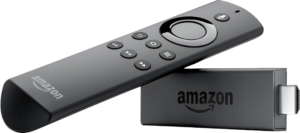
If you have an Amazon Fire Stick, start from step 1.
1: From the home screen of your device, hover over the Find option.
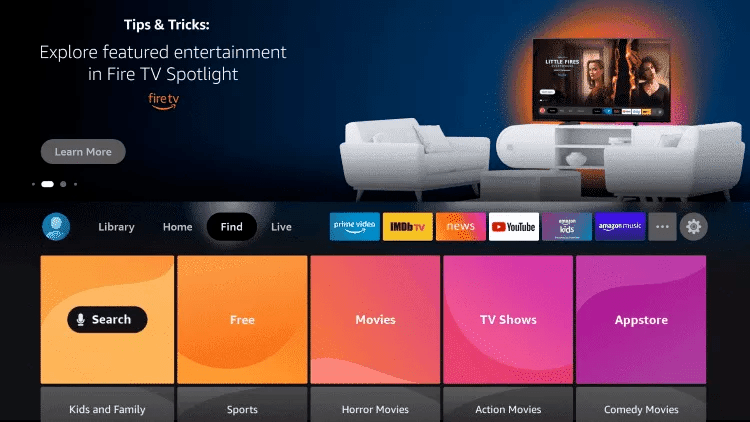
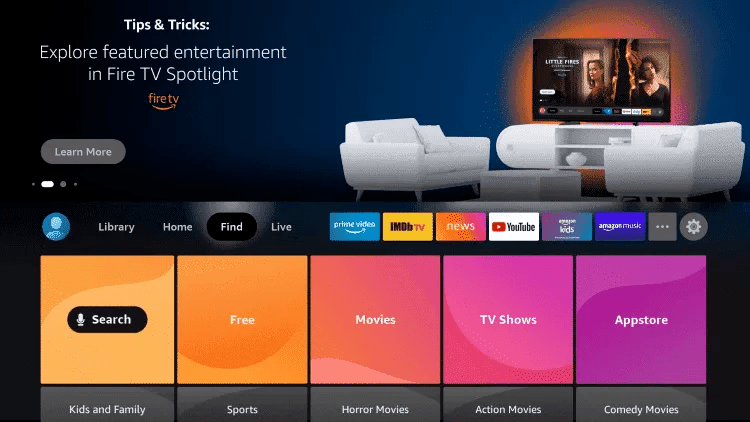
2. Click Search.
3. Search for and select Downloader.
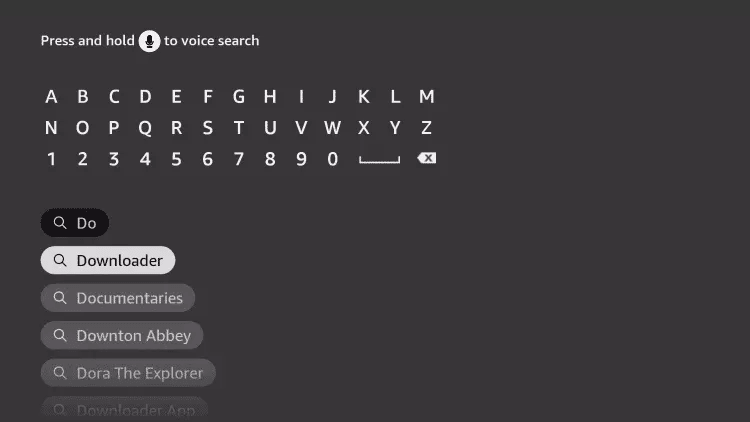
4. Choose the Downloader app.
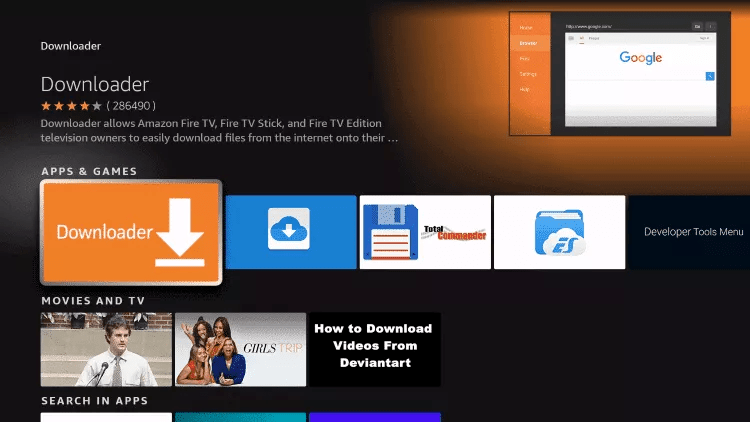
5. Click Download.
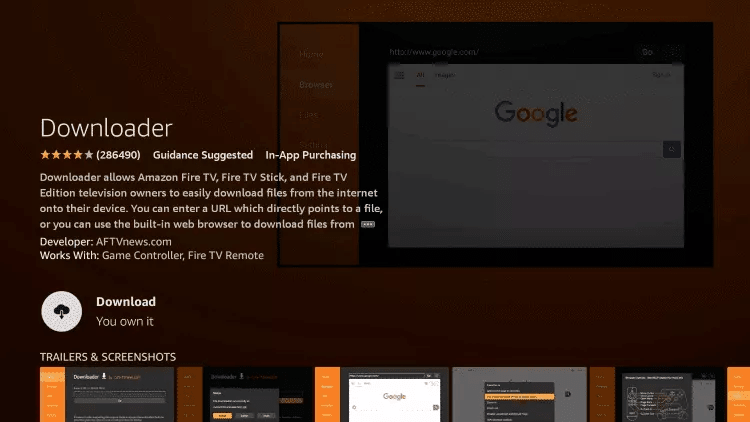
6. Once the app finishes installing click Open.
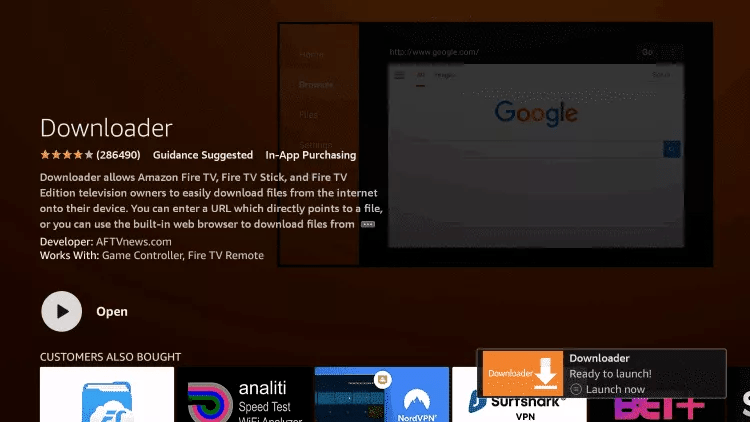
7. Return to the home screen and open Settings.
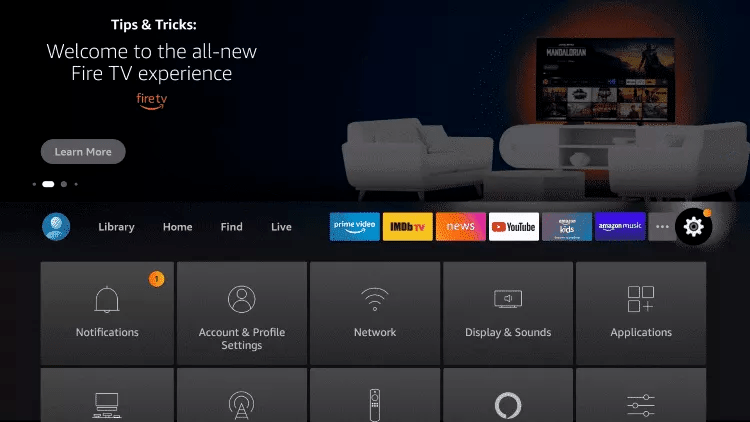
8. Click My Fire TV.

9. Choose Developer options.
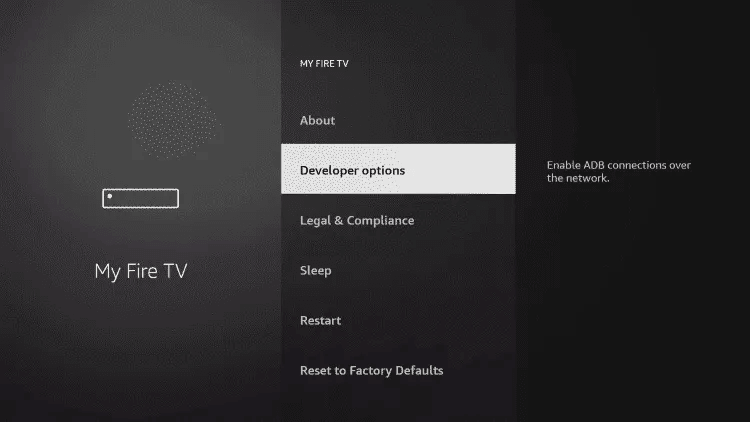
10. Click Install unknown apps.

11. Find the Downloader app and click it.

12. This will turn Unknown Sources to On for the Downloader app. This will enable side-loading on your device.
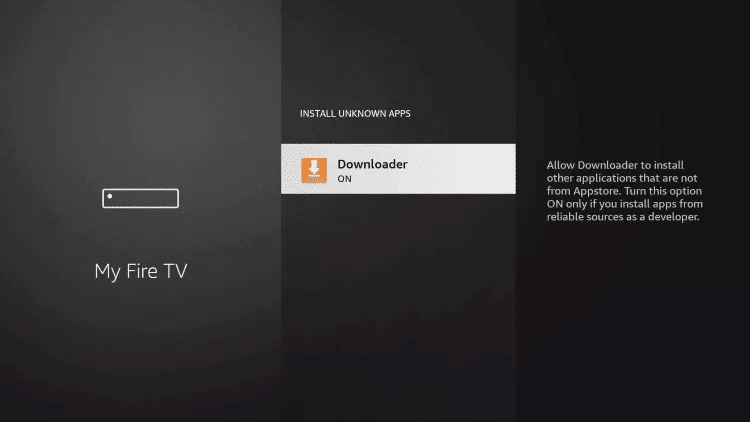
13. Launch Downloader.
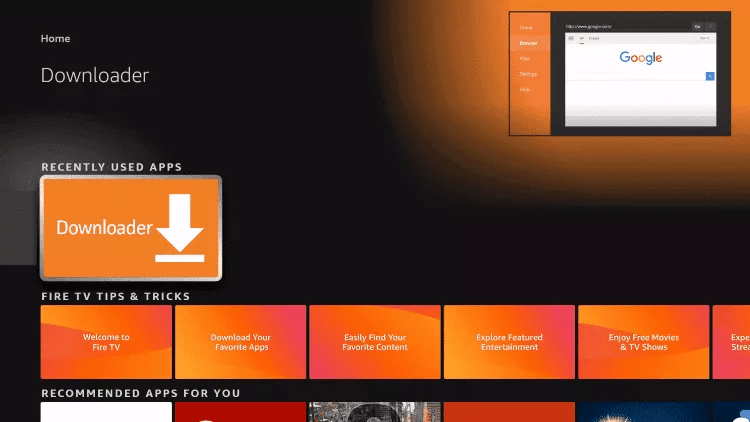
14. Click Allow.

15. Click OK.

16. Type the following code exactly as shown here: 9173313
and click Go.
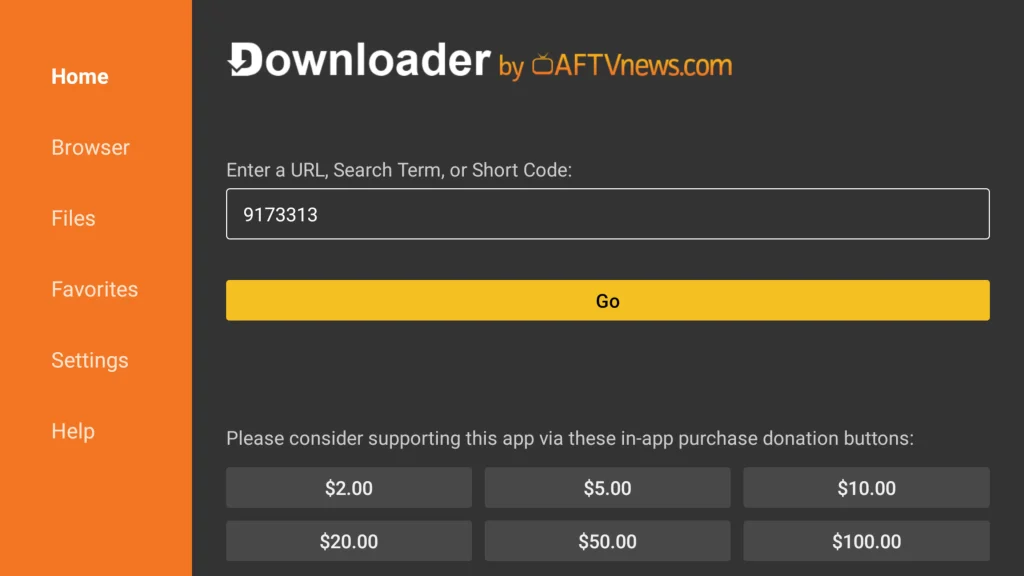
17. Wait for file to download.

18. Click Install.
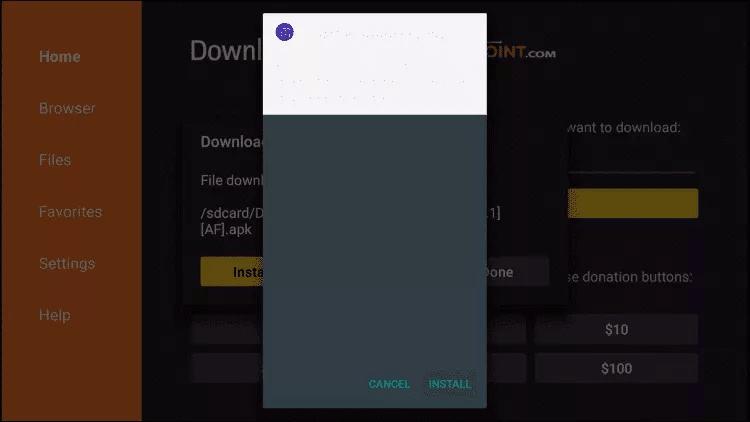
19. Click OPEN.
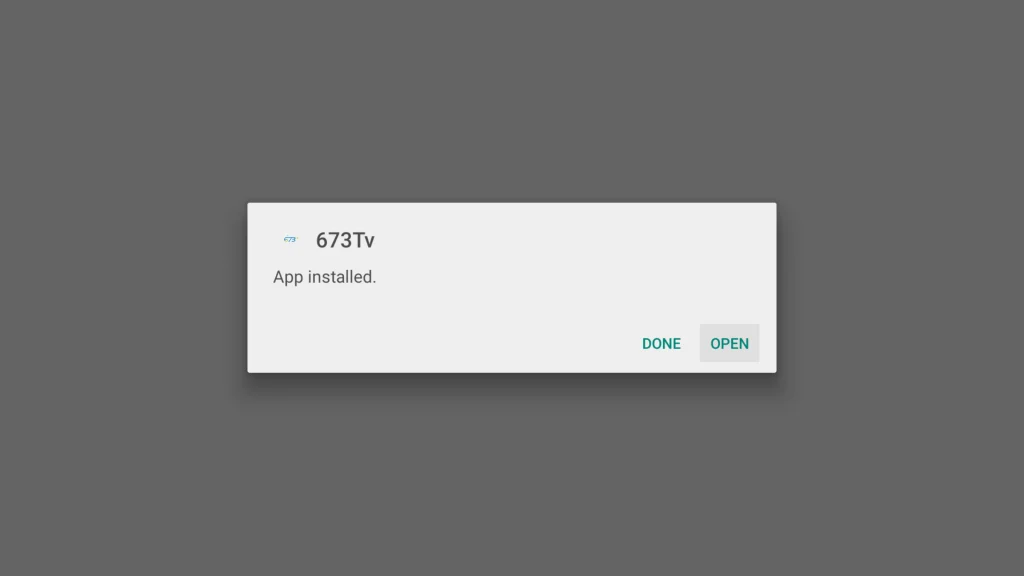
20. Select Add playlist
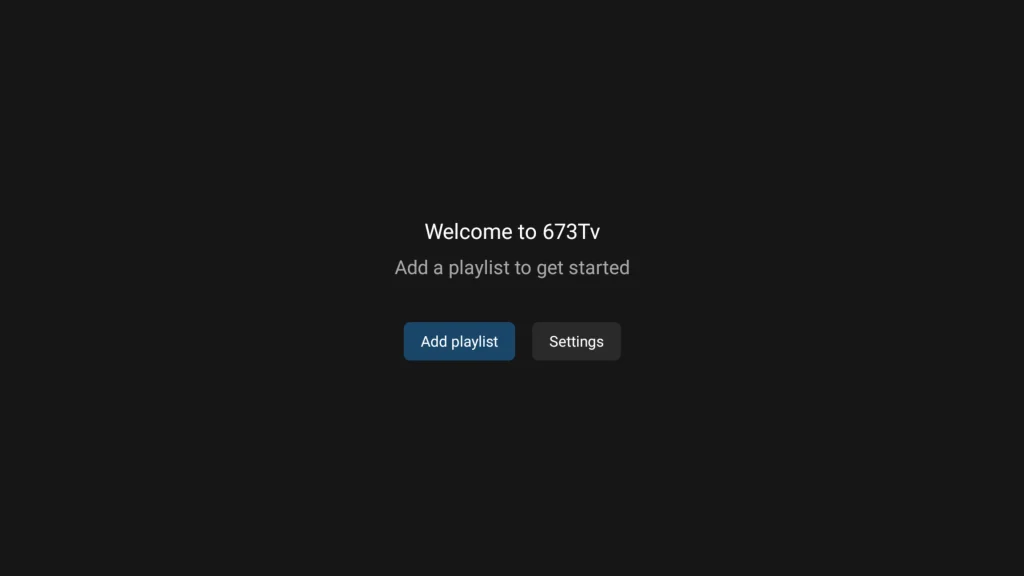
21. Select 673TV
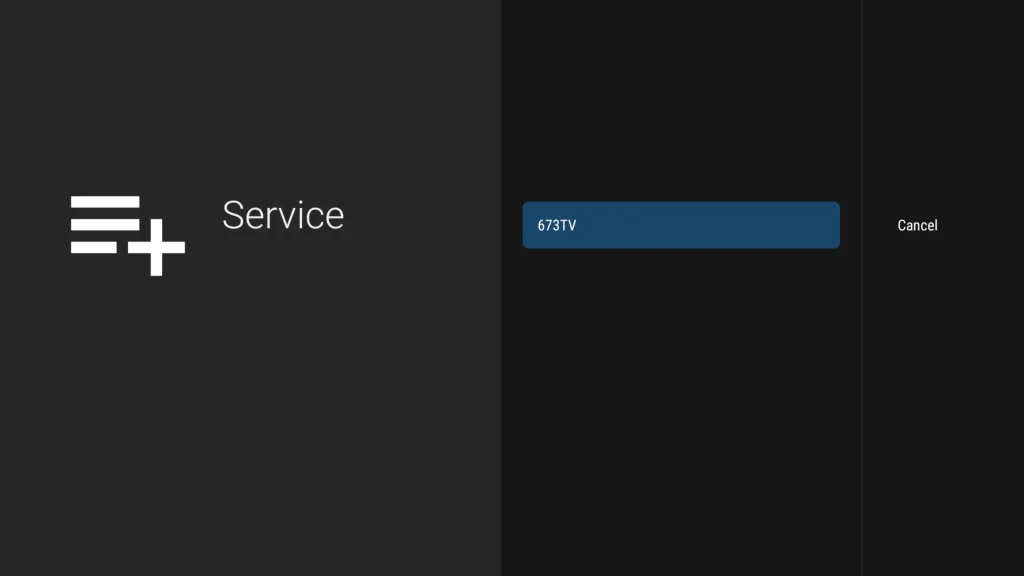
22. Enter the Username and Password that were provided to you (case sensitive) and select Next
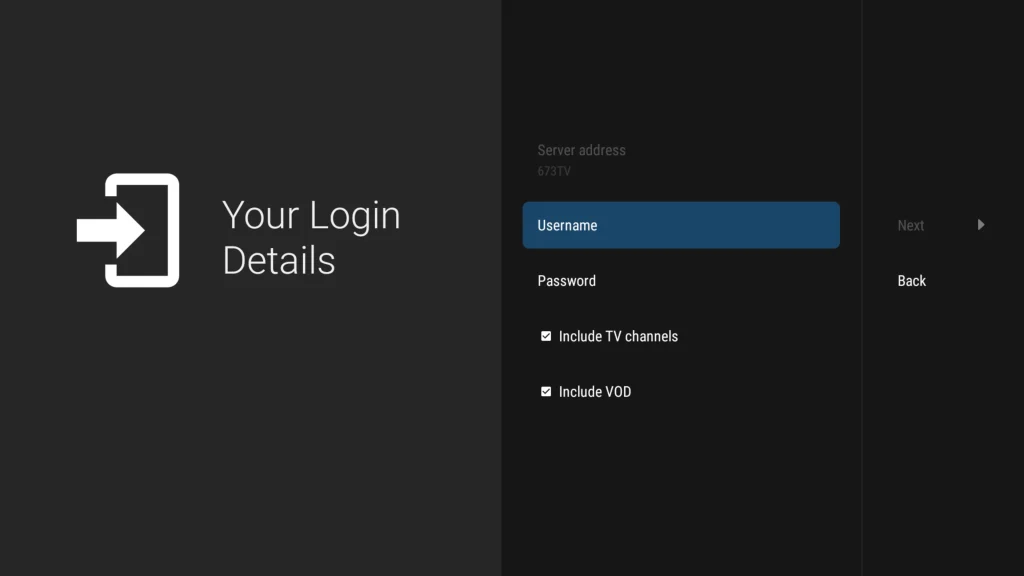
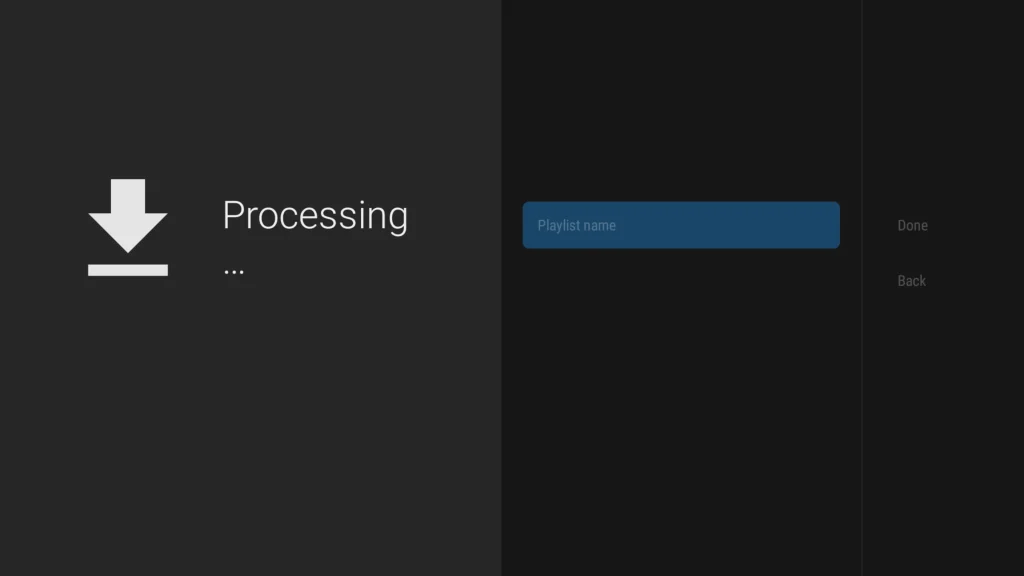
23. When your playlist finishes loading, select Done. Enjoy watching.
IPTV SMARTERS
1: From the home screen of your device, hover over the Find option.
2. Click Search.
3. Search for and select Downloader.
4. Choose the Downloader app.
5. Click Download.
6. Once the app finishes installing click Open.
7. Return to the home screen and open Settings.
8. Click My Fire TV.
9. Choose Developer options.
10. Click Install unknown apps.
11. Find the Downloader app and click it.
12. This will turn Unknown Sources to On for the Downloader app. This will enable side-loading on your device.
13. Launch Downloader.
14. Click Allow.
15. Click OK.
16. Type the following code exactly as shown here: 78522
and click Go.
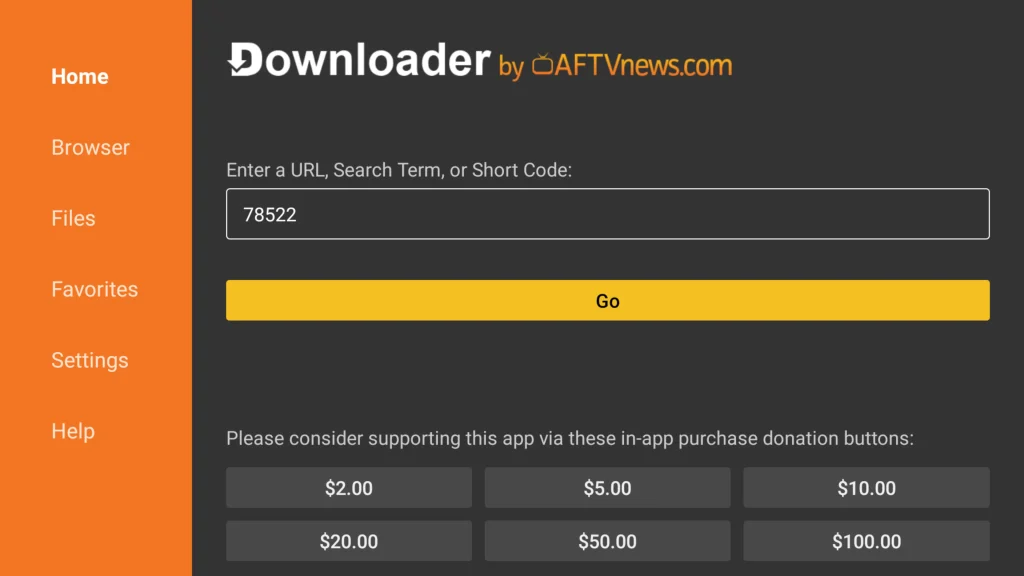
17. Wait for file to download.
18. Click Install.
19. Click Done.
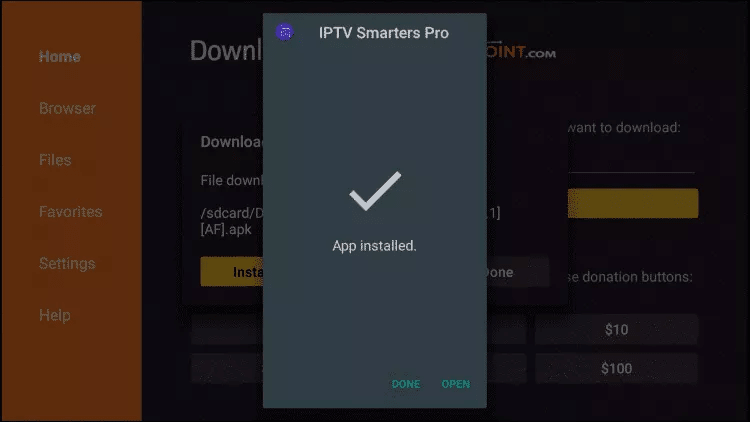
20. Open IPTV smarters then select Login with Xtream codes api.
21. Enter the login details that we sent you via Whatsapp or Email or Chat

IPTV SMARTERS
You will receive your IPTV subscription details via email in the following format, making it easy to set up your service on the app:
Name: 673TV
Username: XXXXX
Password: YYYYYY
Portal URL: http://example.com:8789
You will receive your IPTV subscription details via email in the following format, making it easy to set up your service on the app:
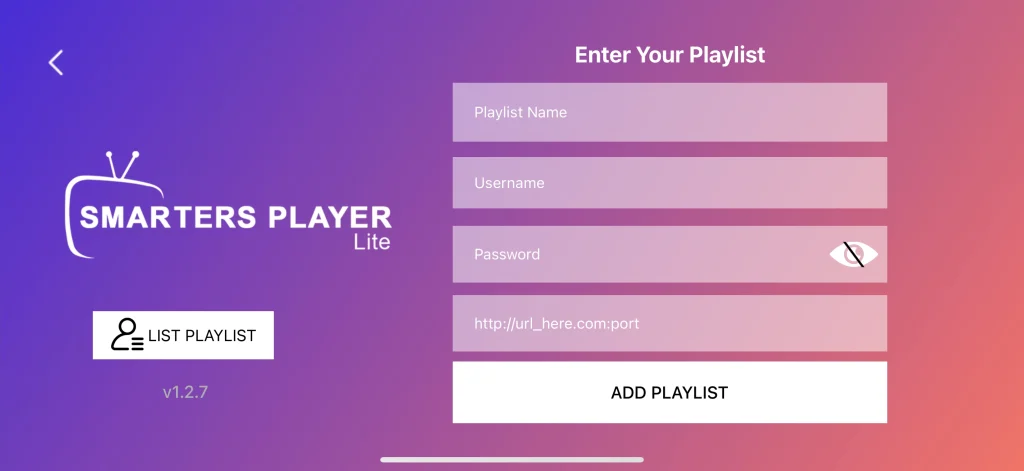
click on Add User
IPTV SMARTERS
1. Download and install Smarters Player Lite.
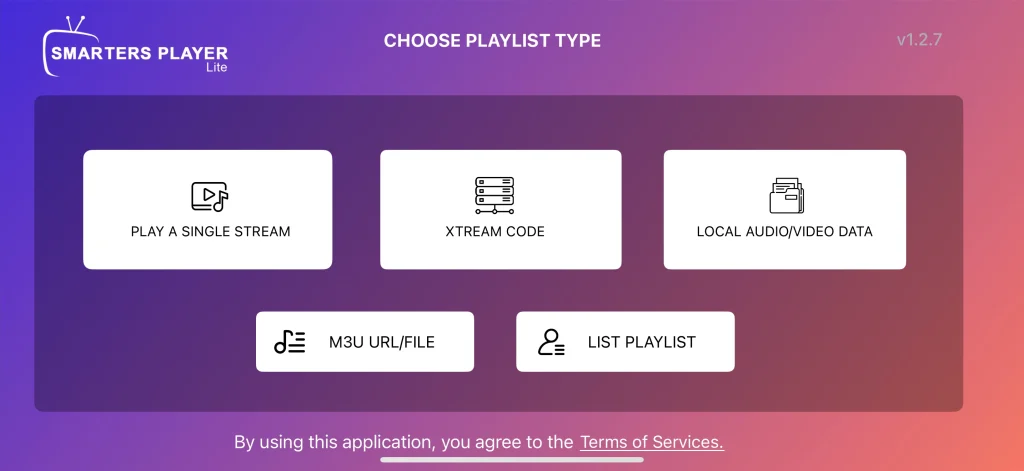
2. Open Smarters and select Add Playlist.
3. Select XTREAM CODE.
4: You will receive your IPTV subscription details via email in the following format, making it easy to set up your service on the app: Enter the information provided to you in the app and click ADD PLAYLIST.
Playlist name: 673TV
Username: XXXXX
Password: YYYYYY
Portal URL: http://example.com:8789
IPTV SMARTERS
1. Download and install Smarters Player Lite.
2. Open Smarters and select Add Playlist.
3. Select XTREAM CODE.
4: You will receive your IPTV subscription details via email in the following format, making it easy to set up your service on the app: Enter the information provided to you in the app and click ADD PLAYLIST.
Playlist name: 673TV
Username: XXXXX
Password: YYYYYY
Portal URL: http://example.com:8789